

Share a Lift
Give a family member, guest, dock manager, or other trusted person their own Atlantis Boater access without sharing your password.
Before you continue
Share access only with someone you trust
A shared user can operate the lift and change its normal settings. The lift owner remains responsible for choosing the recipient, removing access when it is no longer needed, and granting advanced service permissions only to a qualified person.
Invite someone
- 1
Open the lift in Atlantis Boater
Sign in as the lift owner. Open the app menu, choose Settings, and find Access and Sharing. Choose Manage Access beside the correct lift, then Invite Someone.
- 2
Enter their account email
Use the email address they use—or will use—for Atlantis Boater. Each person should sign in with their own account.
- 3
Set an optional end date
Choose 24 Hours, 3 Days, 7 Days, or Custom Date when access should expire. Without an end date, personal shared access stays active until removed.
- 4
Choose advanced permissions
Service Menu and Factory Reset are both off by default. Leave them off for normal users. Factory Reset automatically requires Service Menu access.
- 5
Send and accept the invitation
Choose Send Invite. The recipient signs in with the invited email address and chooses Accept under Pending Invitations in their lift list. They can then select the shared lift and choose Open Lift Control.
Example screens from Atlantis Boater. Names, device details, and settings are samples.
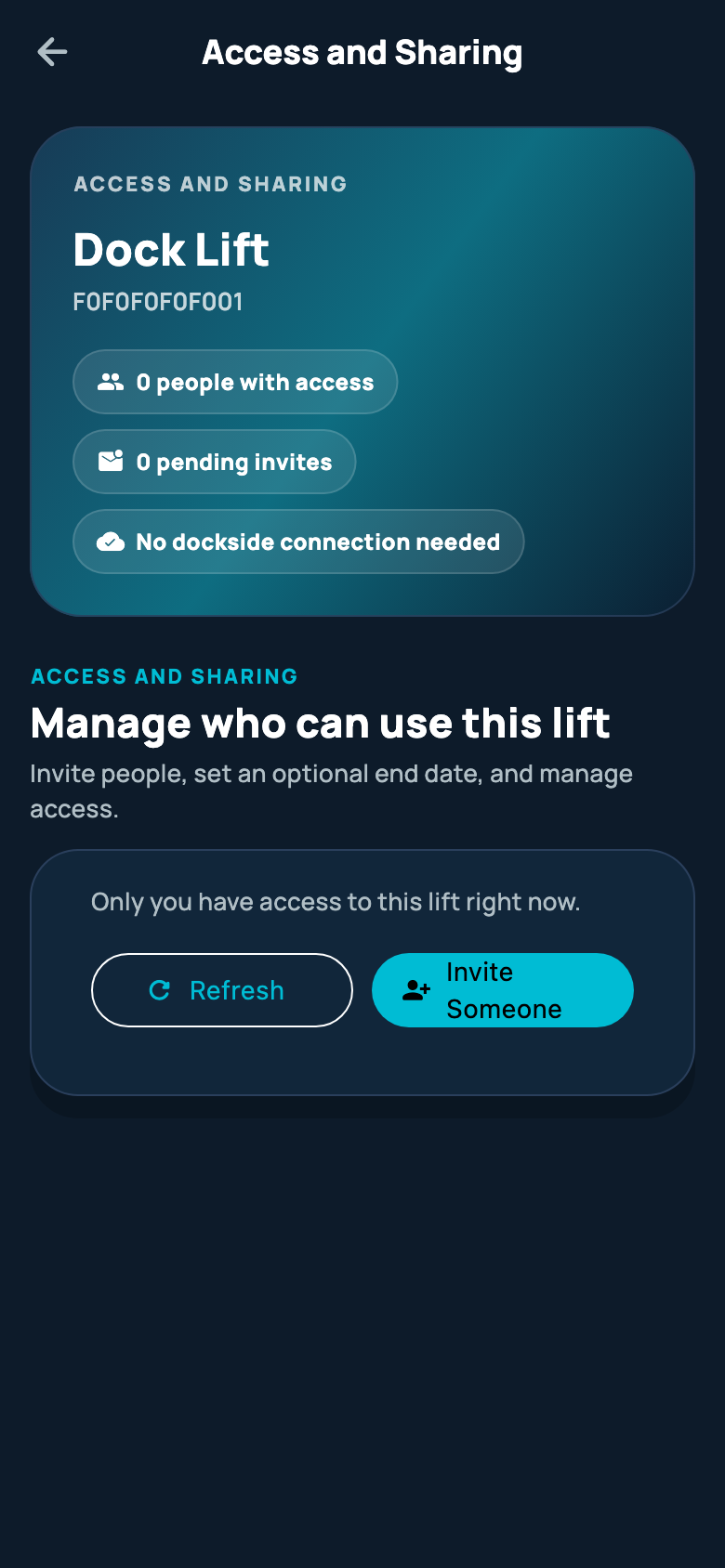
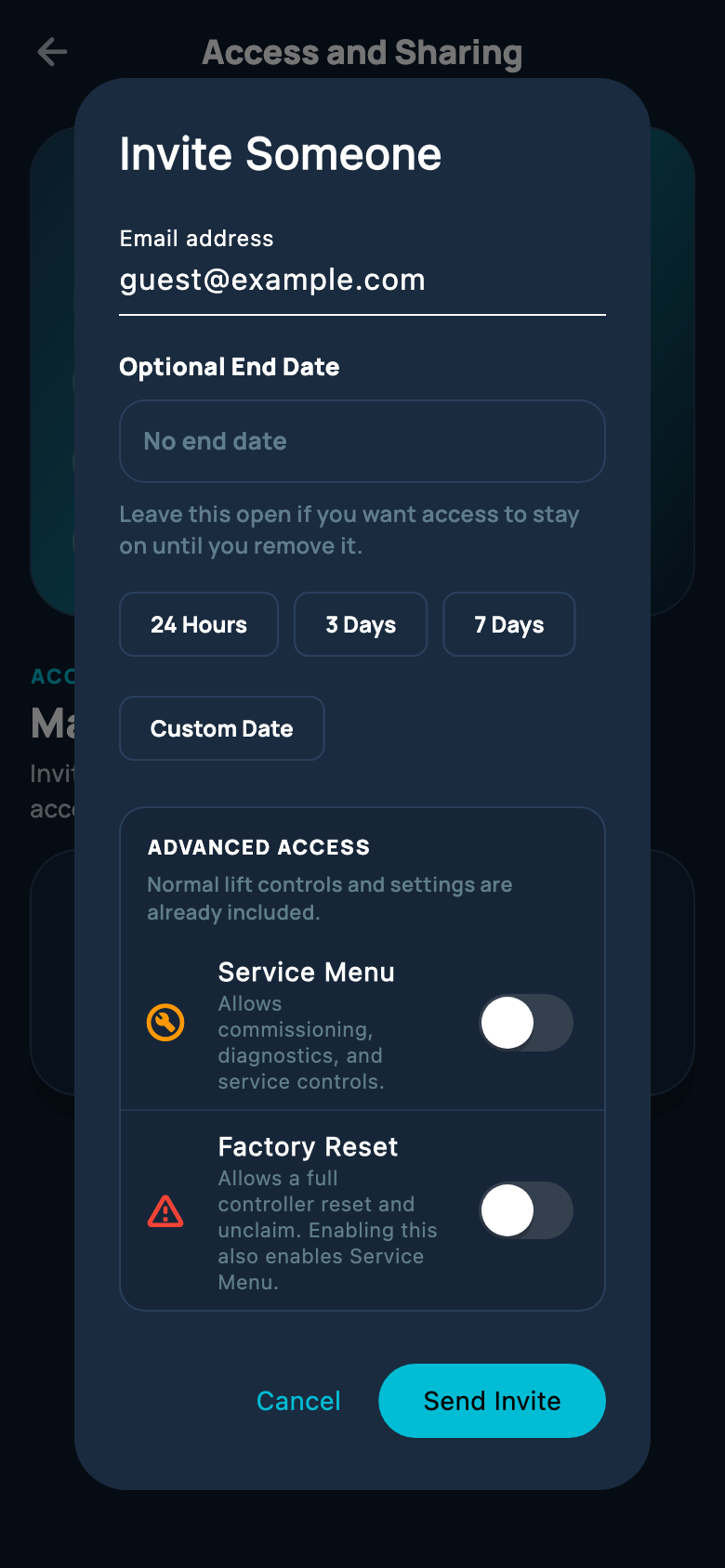
Select an image to enlarge it.
What normal shared access includes
- Manual controls and any automatic, preset, or accessory controls supported by the installed and tested lift
- Lift status, alerts, activity, and connection information
- Normal lift settings, including the lift name, location details, and Wi-Fi
- Nearby Bluetooth control on supported controller firmware. The recipient’s phone must have Wi-Fi or cellular internet for the access check.
- Remote access when the lift is online and its remote-access plan is active
Advanced permissions
- 1
Service Menu
Grant this only to a person qualified to set up or repair your lift. It allows advanced setup while that person is beside the lift. Shared Service Menu access is not available remotely.
- 2
Factory Reset
Grant this only when the same person also needs Service Menu access and is authorized to reset the controller. Factory Reset is a separate nearby-only permission and stays blocked unless explicitly enabled.
- 3
Controller compatibility
Shared advanced access requires compatible controller firmware. If Atlantis Boater asks for an update, ask the lift owner or authorized marina staff to complete it before opening the shared Service Menu.
Marina-assigned access
- A marina controls assigned lift access and its expiration. A reservation or marina assignment is separate from personal lift ownership.
- Marina-assigned users receive the capabilities shown for that lift. Scheduling and nearby Service Menu access may be granted separately; they are not included for every renter. Factory Reset and ownership transfer remain blocked.
- When your marina allows guest invitations, guest access cannot extend beyond your own stay, cannot be re-shared, and uses the permissions allowed by the marina.
- Authorized marina staff may have broader settings and service access. Use Service Menu only when qualified and permitted to service that lift.
- Contact marina staff for an assignment, expired stay, or missing capability. Do not try to claim or reset a marina-managed controller.
Change or remove access
- The owner can open Manage Access, choose Edit Access beside the person, change the end date or advanced permissions, and choose Save.
- Turning off Service Menu also turns off Factory Reset.
- Choose Remove Access when the person no longer needs the lift. An existing nearby Bluetooth connection may take about one minute to lose access. For an urgent access concern, keep the physical key OFF and contact Atlantis Support.
- Never solve a sharing problem by giving someone your account password.
Was this article helpful?
Tell us whether this answered your question.